Integrations
Clio integration and your calendar, sent only what they need
Bring a Clio matter into Brennick, send approved work product back, and put statute of limitations dates on a Google or Outlook calendar. Each connection carries a short, fixed list of fields.
- This page01Case comes inintake or upload
- 02AI draftcited to pages
- 03Attorney reviewedit, approve or reject
- 04Approvedexport, demand, report
- 05Clientnever sees AI output
Who this is for
Office managers and firm admins who keep the firm on Clio and a shared calendar, at personal injury and employment firms. The California personal injury deadlines guide covers the dates that go on the calendar, and integrations are on Brief and above (pricing).
Connected by a firm admin
A firm admin connects each service from Settings and can disconnect it there. Disconnecting deletes the stored credentials, and every connect and disconnect is written to the audit log.
Credentials are encrypted with a key kept outside the database. If a connection stops working, your admins are emailed once and the dashboard says so.
Import a case from Clio
Search your Clio matters, choose one and tick the documents to bring over. Brennick opens a new case the way your staff would: the consent, 42 CFR Part 2 and government-defendant questions, then the conflict check. The new case is linked to its Clio matter.
Imported files are checked and cleaned like any upload, and nothing reads them until your firm accepts the case or chooses to analyze it before deciding. Programs and scripts are not imported.
Accepted cases kept in Clio
Once a case is accepted, Brennick keeps a Clio matter for it: the client as a contact, a description with the case type, state and incident date, the status, a BR reference, a note for each status change, and the case’s documents as files.
A change made in Clio never changes the case in Brennick. Status changes in Brennick go through checks, such as the conflict check and attorney approval, that an outside system should not skip.
Send approved work product to Clio
A licensed attorney can send the approved chronology, the case analysis report or an approved Case Strategy Report version to the case’s Clio matter, as a branded PDF in a folder named Brennick. A draft is never sent, and each send is written to the audit log.
Before it goes, the attorney is reminded that this is attorney work product, not for sharing with the client through Clio’s client portal.
Statute of limitations dates on your calendar
Connect Google Calendar or an Outlook calendar, and each open case’s statute of limitations date appears as an all-day entry with a reminder four weeks before; Google Calendar also reminds one week and one day before. A date an attorney entered says so, and a date no attorney has verified is marked unverified.
The entry moves when the date is entered, verified or cleared, and it is removed when the case is resolved or declined. An edit made in the calendar is overwritten at the next sync. On Docket, records follow-up dates appear too.
What each connection sends, and never sends
Import from Clio
Reads the Clio matters you search and the documents you tick. Nothing else in your Clio account is downloaded.
Accepted cases in Clio
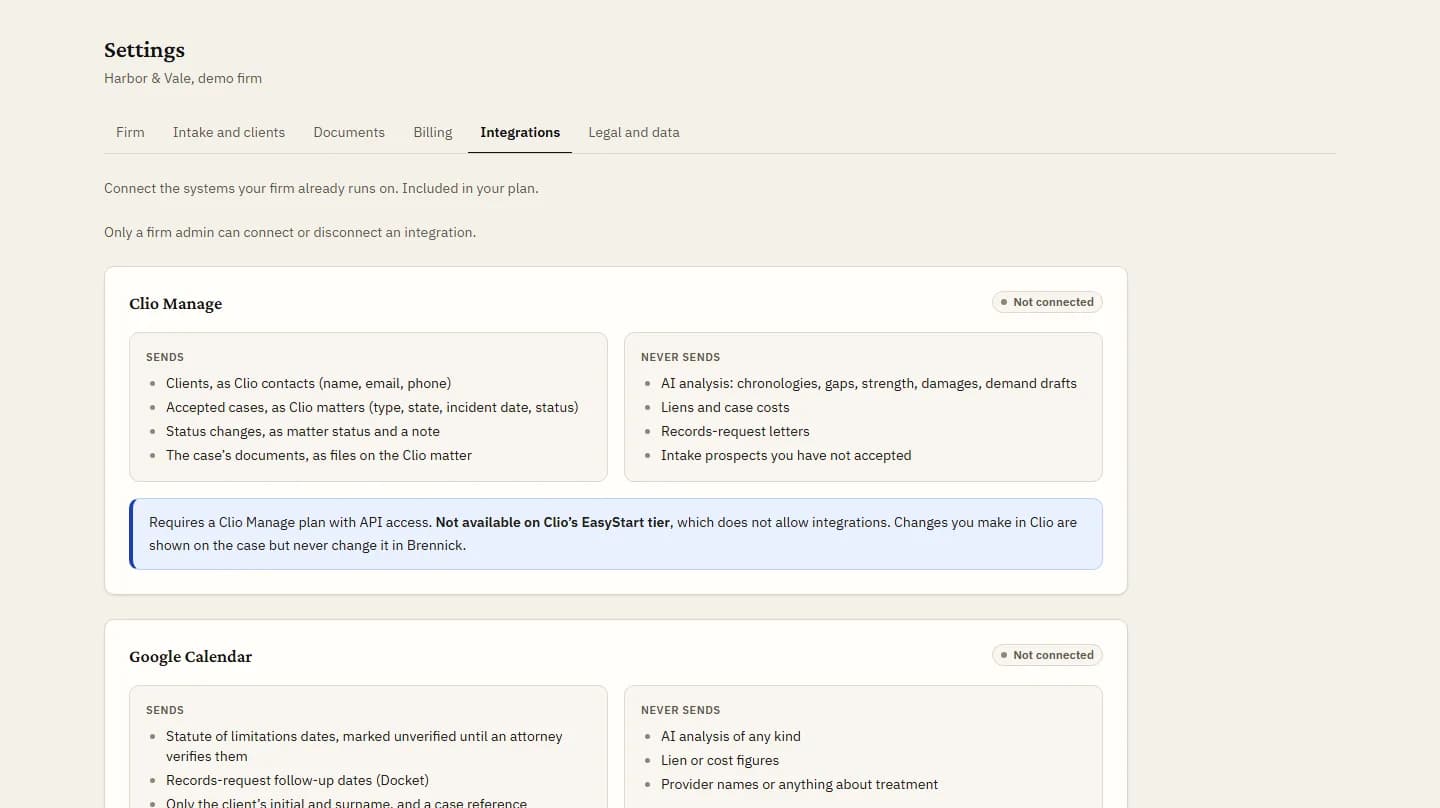
Sends the client’s name, email and phone, the case type, state, incident date, status, a BR reference, status notes and the case’s documents. Never the timeline, gaps, strength, damages, the demand draft, liens, costs, records letters or a Part 2 designation.
Send to Clio
Sends the one approved PDF an attorney chose. Never a draft.
Google Calendar and Outlook
Sends the date, the client’s initial and surname, the BR reference and a link. Never analysis, liens, costs or provider names, since a provider’s name alone can reveal treatment.
| Sends | Never sends |
|---|---|
|
|
| Sends | Never sends |
|---|---|
|
|
| Sends | Never sends |
|---|---|
|
|
The tables below are the same words your firm admin reads in Settings, Integrations, before connecting.
FAQs
Does Brennick read our whole Clio account?
No. It searches when you search, and downloads only the documents you tick.
Whose calendar gets the entries?
The calendar of the Google or Microsoft account a firm admin connects, so connect the one your firm keeps its dates on.
What happens to entries when a case closes?
They are removed when the case is resolved or declined.
Do integrations cost extra?
No. They are part of Brief and above, with no separate fee.
Connect the tools your firm already uses
3-day trial, 1 case, card required. Choose Brief or Docket to connect Clio and your calendar.